> ## Documentation Index
> Fetch the complete documentation index at: https://docs.usecustory.com/llms.txt
> Use this file to discover all available pages before exploring further.
# Automations
> Use Custory automations to turn repeated journey work into scheduled or event-based follow-up.
When a schedule, item event, GitHub PR, or analytics signal changes something important, automations keep the journey current without manual follow-up.
They help your team pull customer signals, create work, notify the right people, and refresh journey context automatically.
## What automations are for
For small teams, automations help with repeated moments that slow people down:
* an item becomes important
* a signal moves in analytics
* a PR gets merged
* the team needs a recurring summary
## What automations can do
Custory automations can:
* update journeys with AI instructions
* create GitHub, Jira, or Linear issues
* send Slack or Discord messages through [integrations](/integrations)
* pull analytics signals
* fetch [GitHub PR context](/github-integration)
## How to set up one
Start small:
1. Open the journey or repository block the automation should affect
2. Open **Automations**
3. Choose a trigger
4. Narrow the scope with filters or journey selection
5. Add one action
6. Save it as a draft
7. Activate it when the result looks right
Use **Run once** when you want to test a time-based automation before leaving it active.
## The automation model
Every automation has three main parts:
* a trigger
* optional filters or scope
* one or more actions
```mermaid theme={null}
flowchart LR
T["Trigger
Schedule or event"] --> F["Filters and scope
Journey, item type, status, priority"]
F --> A["Actions
Update journey, create task, send message"]
A --> R["Team result
Less manual follow-up"]
X["AI support
Useful summaries and cleaner task drafts"] --> A
I["Integrations
Slack, GitHub, Jira, Linear, PostHog"] --> A
```
## Start with templates
Custory includes templates for common patterns such as weekly pulses, priority-to-task handoff, analytics signal changes, and GitHub merge refreshes. See [Automation templates](/automation-templates) when you want a faster starting point.
## Where AI helps most
AI is useful when the workflow needs context-aware writing instead of static templates.
Examples:
* writing a useful weekly journey summary
* drafting a clearer issue from real journey context
* updating the journey after a GitHub merge or analytics change
Automation AI mode can help edit trigger choice, action choice, integration details, message or issue-writing instructions, and the overall automation structure.
Save the automation before using AI to edit it in place. Custory needs a real automation record to work against, and the editor will ask you to save first if the draft does not exist yet.
Use the Custory AI entry point from the automation editor header. Treat AI changes as draft changes to review, and activate the automation only after the trigger, scope, routing, and output look right.
## Trigger types
Custory supports both scheduled and event-based triggers.
### Scheduled triggers
Use scheduled triggers for recurring review and reporting rhythms:
* hourly
* daily
* weekly
### Event-based triggers
Use event-based triggers when the automation should react the moment something important changes.
Supported examples include:
* item created
* item updated
* item status changed
* impact threshold crossed
* effort threshold crossed
* priority threshold crossed
* [GitHub PR](/github-integration) opened
* [GitHub PR](/github-integration) merged
## Automation scope
Every automation runs in one of two scopes:
* **Journey scoped** — the automation applies to selected journeys
* **Repository scoped** — the automation works across reusable [building blocks](/building-blocks) in the workspace
Use journey scope for map-specific follow-up such as a weekly onboarding pulse or a PR merge refresh on one journey.
Use repository scope when the automation should maintain shared blocks across the workspace. Examples:
* refresh reusable metrics when analytics shift
* create follow-up tasks from repository item changes
* let Custory AI update shared insights without targeting one journey map
In repository scope, the **Update journey** action becomes **Update repository**, and run history links back to building blocks instead of a single journey.
Repository-scoped GitHub, Jira, and Linear actions can link directly to the repository item from the trigger without requiring a journey step.
## Filters and scope
Filters keep automations useful by narrowing where they apply.
Common controls include:
* [journey](/journeys)
* item group
* status
* impact
* effort
* changed fields
* repository
* base branch
Good automation design usually starts with tighter scope than you think you need.
## Actions
Actions are what the automation does after the trigger and filters match.
Common actions include:
* create a GitHub, Jira, or Linear issue
* send a Slack or Discord update
* update the journey
* fetch or refresh external context
Choose actions based on the real handoff you want to reduce.
## Lifecycle and control
Automations move through statuses such as:
* draft
* active
* paused
* invalid when setup requirements are not met
Custory also supports:
* validation before activation
* **Run once** for time-based automations
* run-history review
* pausing and reactivating
## Start with one workflow the team will trust
Start with the smallest useful workflow.
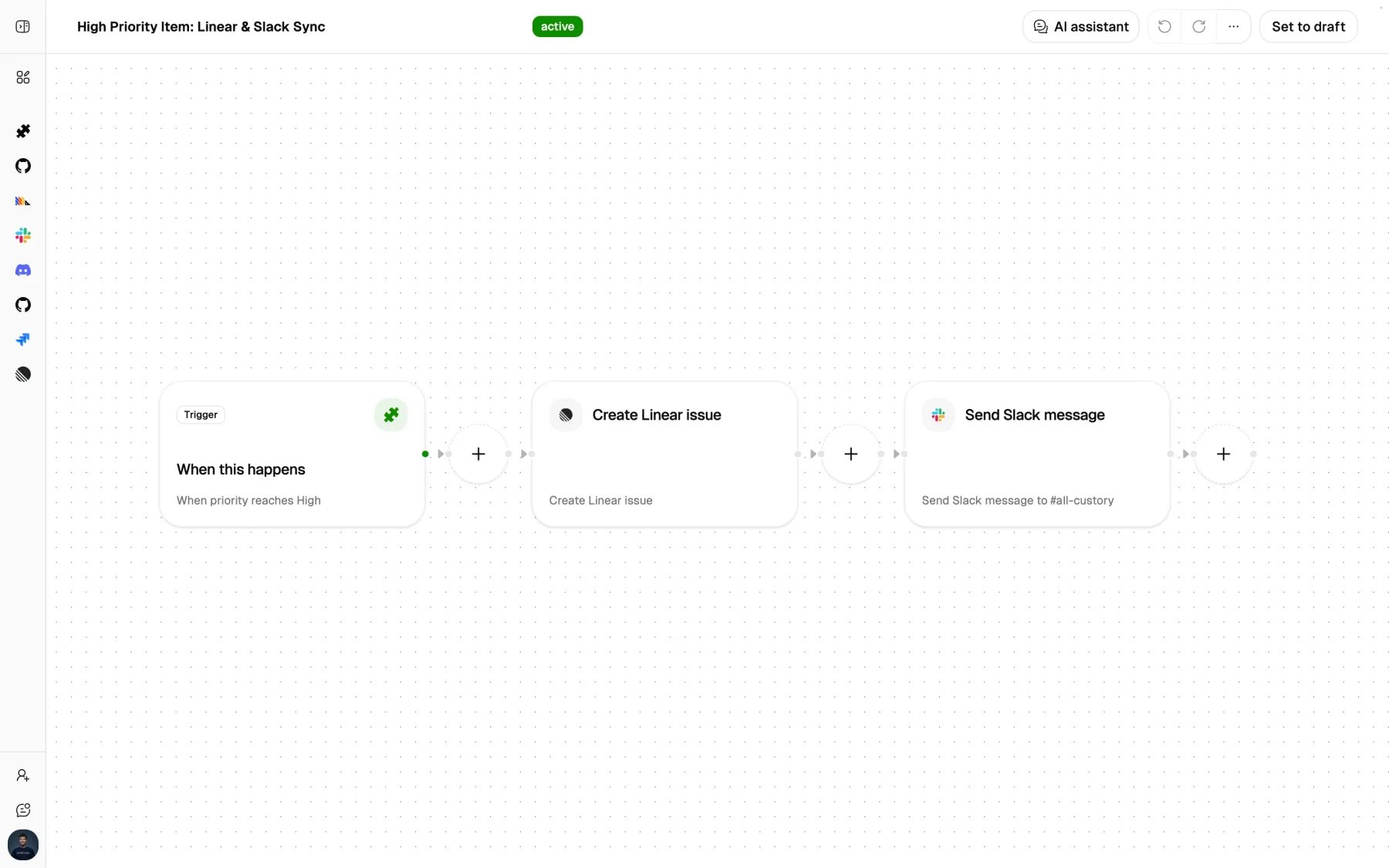
Example:
* Trigger: high-priority opportunity created
* Filter: only in the onboarding journey
* Action: create a Linear issue and send a Slack update
That is easier to trust, test, and improve than a large multi-step automation from day one.
## Mistakes that create noise
Automations amplify the underlying data quality. Clean up statuses, ownership, and [items](/items) quality first so the automation is acting on signals your team already trusts.
One reliable automation is better than several noisy ones the team ignores. Start with the repeated task that already causes the most friction and prove value there first.
If the task is not recurring, you may not need automation yet. Build the habit manually once or twice, then automate the parts that clearly repeat.
That usually creates noise. Start narrower than you think you need, then widen the scope only after the automation proves useful and trustworthy.
Start from the job, then map the action. If the team cannot explain what the automation should improve, the action layer will usually become arbitrary.
AI improves a clear automation. It does not rescue an unclear one. Define the trigger, scope, and expected output first, then use AI to make the result stronger.
## What good automation design looks like
A good automation setup:
* reduces repeated manual work
* keeps customer context attached to follow-up
* sends only useful updates
* is easy for the team to trust
## Next step
Read [Templates](/automation-templates) for faster starting points.