

What an automation includes
Every automation has:- one trigger
- a journey or repository scope
- optional trigger filters
- 1 to 3 actions
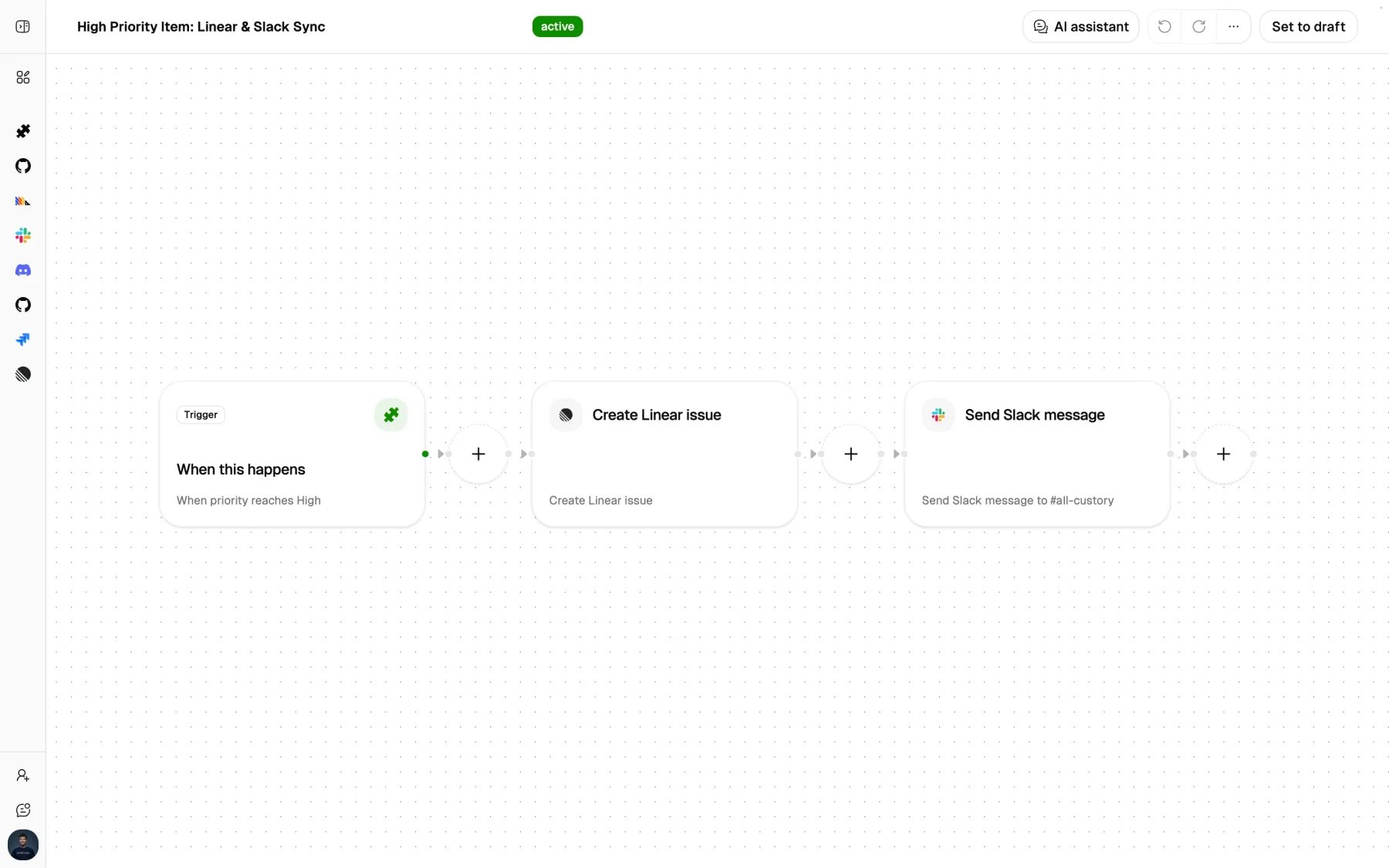
Supported capabilities
Trigger types
Custory supports these trigger kinds.
For weekly triggers, you must choose at least one weekday.
Scope and filters
Every automation runs in one of these scopes.
Common trigger filters include:
- item group
- status
- impact greater than or equal to
- effort less than or equal to
- changed fields
- journey
- base branch
Action types
These are the supported actions.
For GitHub, Jira, Linear, Slack, and Discord actions, text can be static or AI-drafted. Static mode requires you to fill the matching title, description, summary, or message template fields.
AI assistance
Use AI when the output should reflect the actual journey context instead of a fixed template. AI can help with:- the trigger and action structure
- issue and message wording
- integration routing details
update_journeyinstructions
Status and control
Automations use these statuses.
Custory validates automation setup before activation. Integrations used by the trigger or actions must exist, belong to the same workspace, and be active.
Run once and run history
Run once is available only for saved time-based automations. Event-based automations cannot be run manually.
Each run is tracked with one of these statuses:
queuedrunningsucceededfailedskipped
skipped means the run was created but Custory did not execute the full workflow, for example because validation or billing checks failed at runtime.
Permissions and limits
Keep these constraints in mind before you activate an automation:- You need editor access to create, activate, pause, run once, or delete an automation.
- Viewers can review automation run history.
- Activating or manually running an automation requires writable workspace billing.
- One automation can include 1 to 3 actions.
- A journey-scoped automation must target exactly one journey before activation.
Related tasks
- Read Automation templates when you want a faster starting point.
- Read Integrations before configuring Slack, Discord, GitHub, Jira, Linear, PostHog, or Stripe actions.
- Read GitHub integration for repository and PR trigger setup.